Infrastructure administration
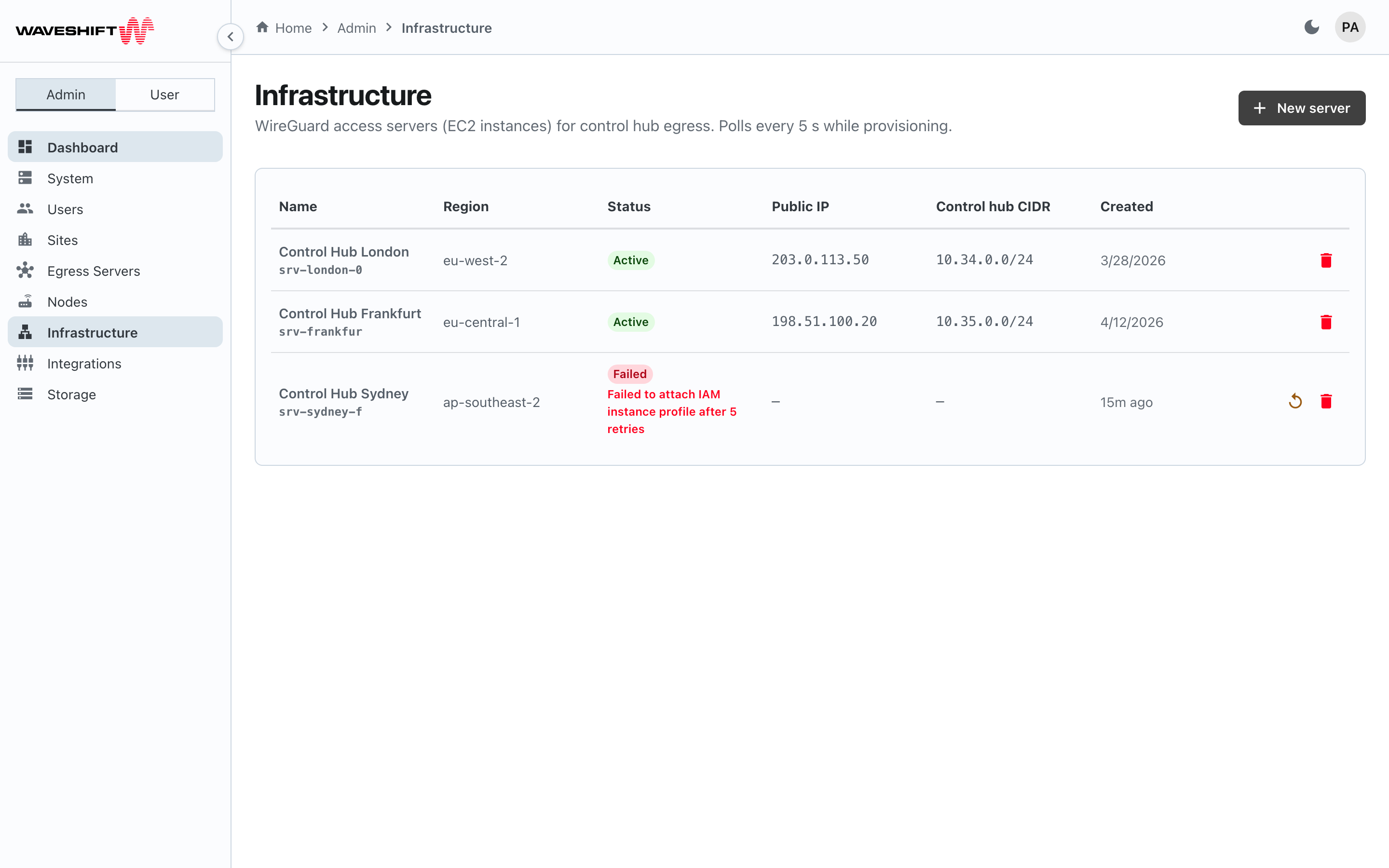
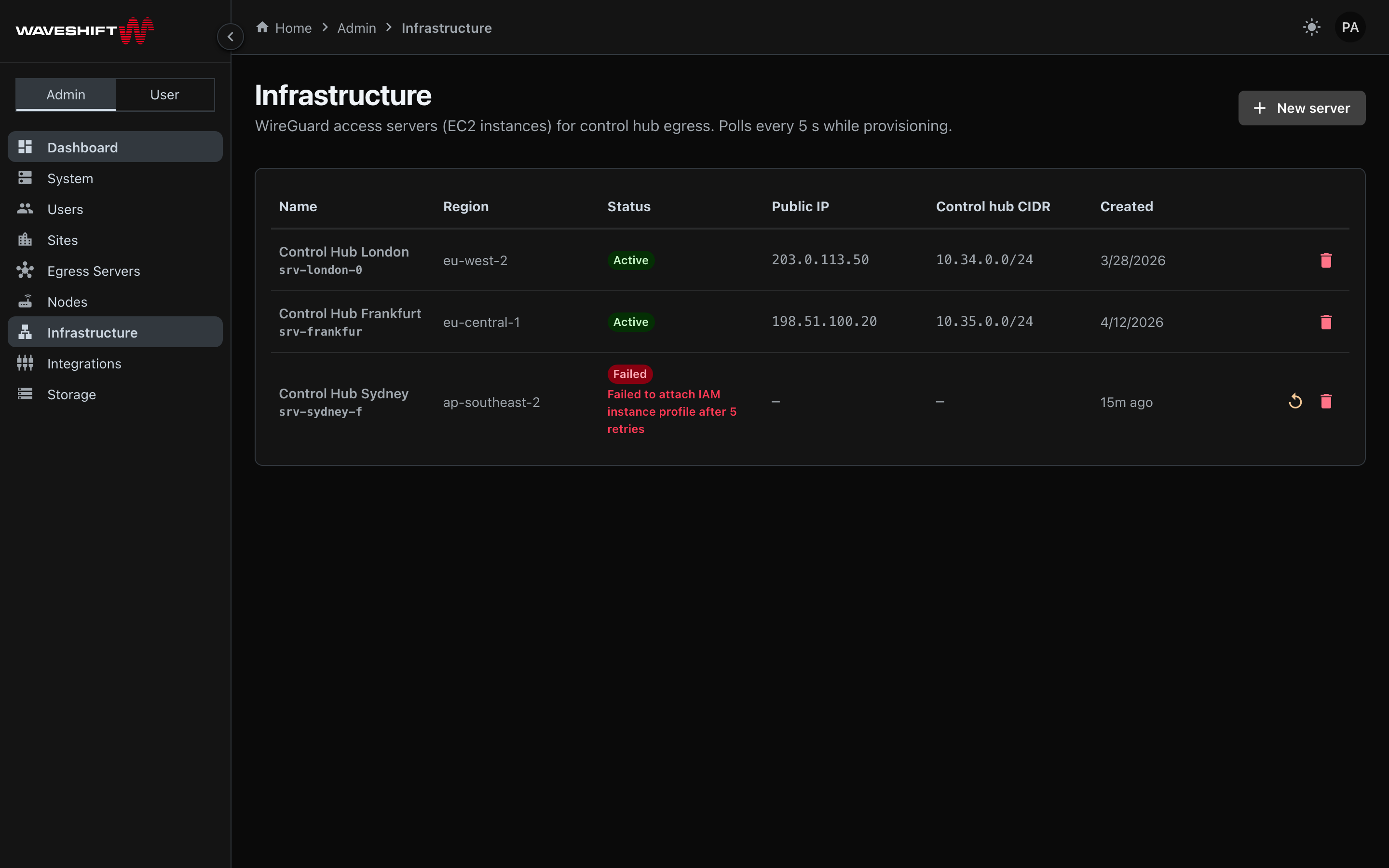
The Infrastructure page (/admin/infrastructure) has two cards:
a table of Infrastructure Access Servers and, below it, the
Regions table of AWS regions Waveshift can deploy
into.
Infrastructure Access Servers are public-subnet WireGuard
servers that a Site's Control Hub dials into. One per Site.
Without it the Hub can't reach the orchestrator at all, so Node
configuration breaks and any tablet plugged into the Hub for
ops-room console access loses connectivity to
console.waveshift.internal. (The Web UI currently labels these
"Infrastructure servers"; the canonical term in the docs is
Infrastructure Access Server.)
The Infrastructure Access Server is not an Egress Server and never carries user traffic out to the public internet. Its three roles:
- Terminate the Hub's management tunnel so the orchestrator can push configs to attached Nodes.
- Act as the AWS-side endpoint of a Node's user-WG tunnel while the Node is tethered to the Hub (tunnel-in-tunnel). The Node's traffic is then forwarded over AWS VPC peering to the chosen Egress Server in its region.
- Provide the path that lets a tablet on the Hub's LAN reach
console.waveshift.internal.
The access-server table
The servers table has these columns:
- Name — display name with the 12-character server ID below.
- Region — the AWS region ID, with its colour dot.
- Status —
Pending,Provisioning,Active,Failed, orDeleting. If the server reports an error, the message is shown immediately below the chip in danger colour. - Public IP — the server's elastic IP once provisioned, or
—while pending. - Control hub CIDR — the CIDR the access server routes traffic for, monospaced.
- Created — relative time.
Per-row actions
- Retry provisioning (replay icon, warning-coloured) — only
shown on
Failedrows; re-runs the provisioning saga. - Delete (red trash) — opens a confirm dialog warning that the server will be torn down and the control hub will lose connectivity until a replacement is provisioned.
Creating a server
There's no create button on this page — access servers are
provisioned with wsctl, and appear in the table once created.
The page polls every 5 seconds while any server is transitional,
so a new server flips to Active automatically once AWS reports
the instance ready.
Empty state
A deployment with no access servers shows an empty card explaining
that infrastructure servers are provisioned with wsctl and will
appear here once created.
Regions
The Regions card lists every AWS region you've added for Waveshift to deploy into. Each row is expandable — click it to inline the underlying AWS network configuration for that region: the VPC and its CIDR, the public and private subnets, the internet and NAT gateways, the route tables, and the security group. Network details are loaded on demand and cached, so the first expansion shows a brief loading bar.
Visible columns:
- Region — friendly name (e.g. Europe (Frankfurt)) with the AWS region ID below.
- Status — usually
Active,Provisioning,Failed, orDeleting. Disabled regions drop off the table. - VPC — VPC ID once provisioned,
—while pending. - CIDR — VPC CIDR block.
- Sites using — count of sites whose allowed list includes this region (a site with no allowed regions counts as using every region).
- Notes —
—when healthy; carries the AWS error message if the region failed to come up (e.g. account quota exhausted).
Per-row actions on the right:
- Retry provisioning (replay icon) — only shown on
Failedrows; re-runs the region provisioning saga. - Disable — only shown on
Activerows; tears the region down straight away (there's no confirm dialog). Disabled if the region is in a transitional state, or if any site still uses it.
Add region in the card header opens a dialog listing every
supported AWS region you haven't added yet. Picking one and
clicking Enable kicks off provisioning, and the row appears in
Provisioning. The page polls every 5 seconds while any region is
transitional, so the status flips to Active automatically on
success. Once a region is active it appears in the New egress
server dialog's Region list.