Profile
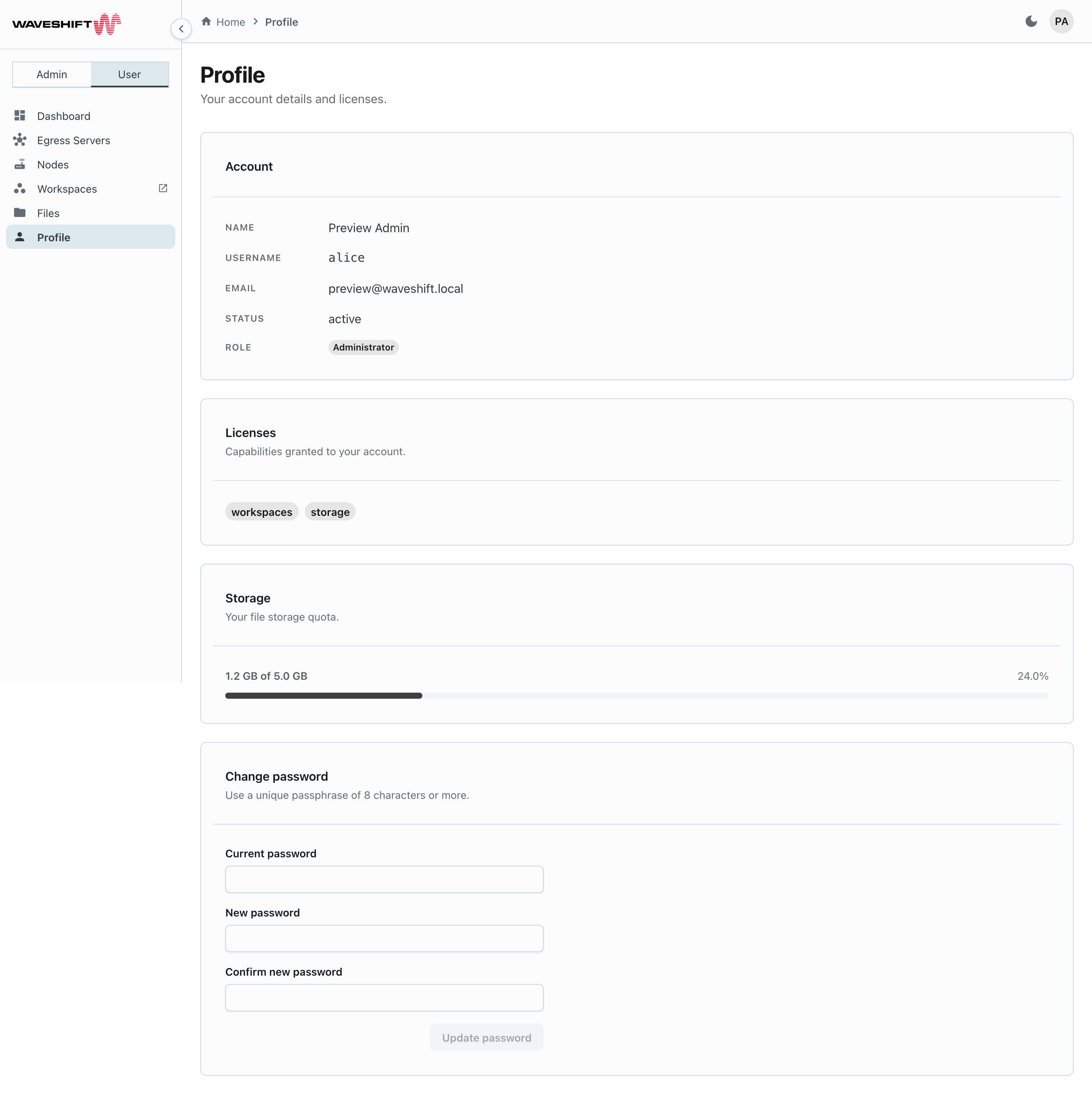
The Profile page (/profile) shows your account details and lets
you change your password.
Account
The first card is a read-only summary:
- Name — full name (first and last)
- Username — the case-sensitive identifier you sign in with
- Email —
—if your administrator hasn't set one - Phone — if set
- Employee ID — if set
- Status —
activeorlocked - Role — Administrator chip (charcoal) or User chip (neutral)
To change any of these except the password, an administrator updates your account from the Users administration page.
Licences
A row of chips showing every licence assigned to you, e.g.
workspaces, storage. The features each licence unlocks:
workspaces— the Workspaces nav action and Kasm auto-loginstorage— the Files page
Storage
Only shown if your account has the storage licence. A bar shows
how much of your quota you've used; if your quota is unlimited you
see the amount used and Unlimited instead of a bar. The orchestrator updates these
numbers periodically; refreshing the page pulls the latest figure.
Change password
The bottom card on the page. Three fields:
- Current password — required for self-service updates
- New password — minimum eight characters
- Confirm new password — must match exactly
The Update password button stays disabled until the current password is filled in and both new fields match and meet the length requirement. On success, a green toast confirms the change; on failure (wrong current password, server rejection) a red banner explains why.
Changing your password invalidates all of your existing sessions, including the one you're using — the next time the console talks to the orchestrator you're sent back to the sign-in page. Sign in again with the new password.