Users administration
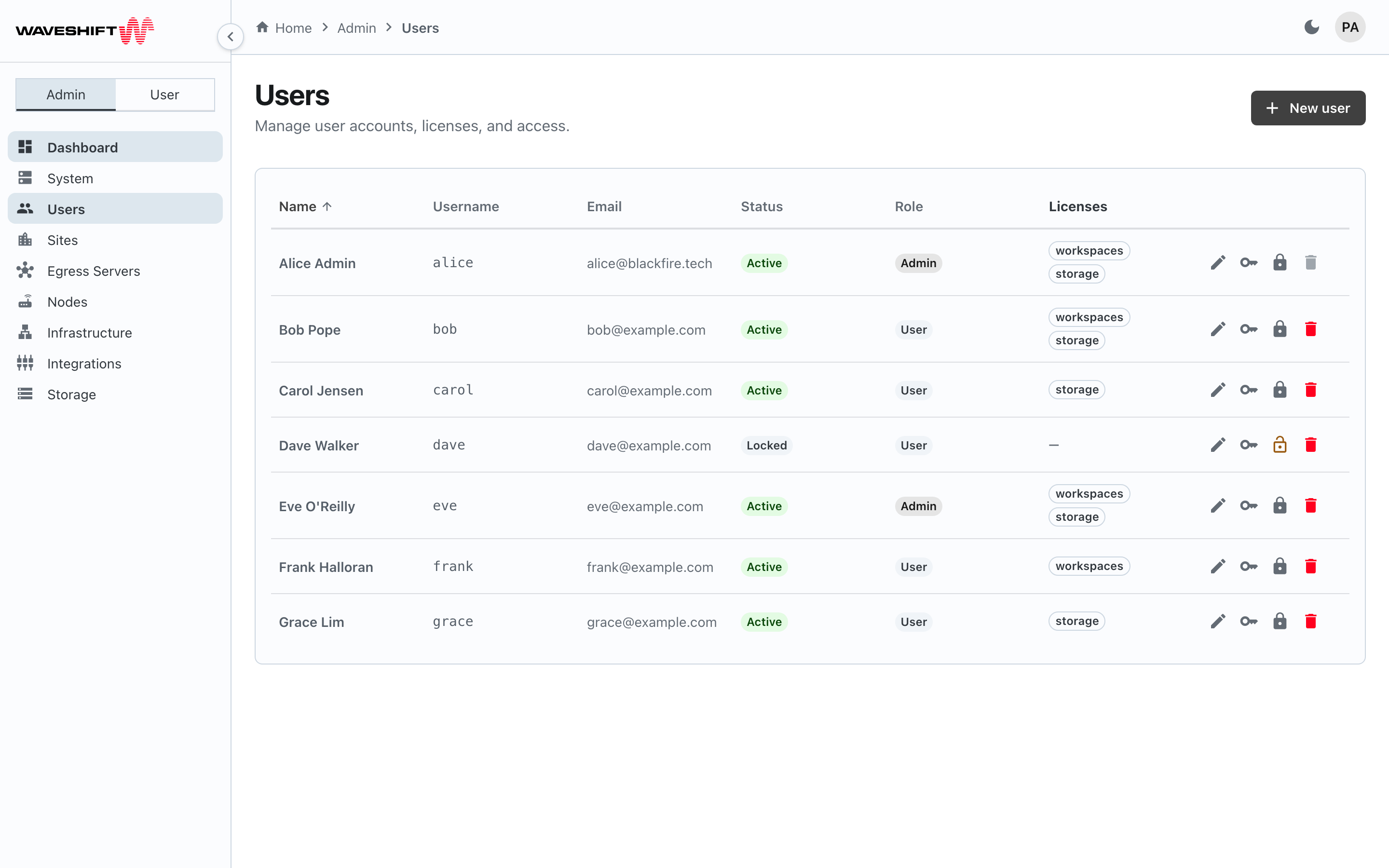
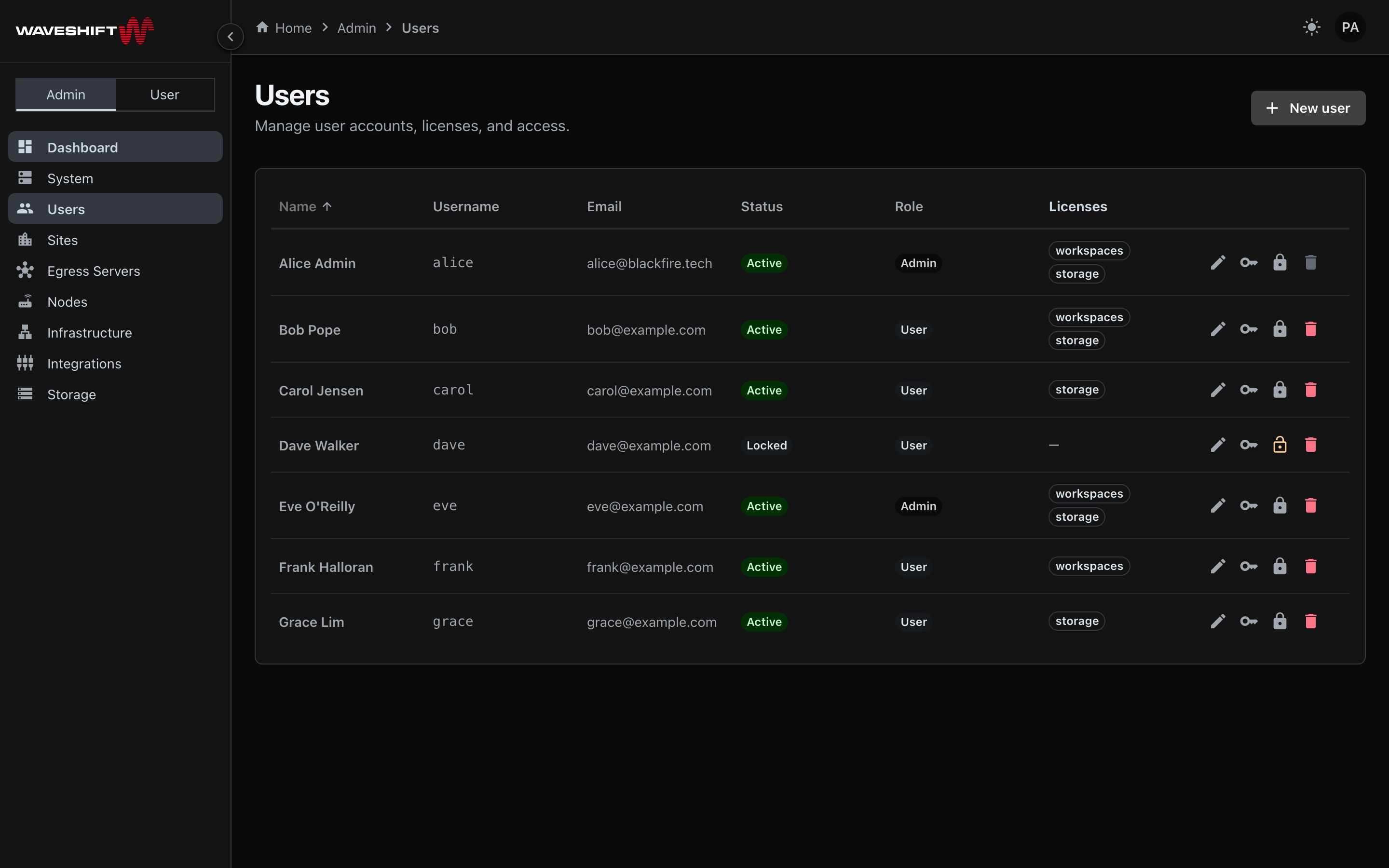
The Users page (/admin/users) is where you create accounts, change
passwords, lock or unlock people, and delete users you no longer
need.
The table
A single sortable, paginated table (25 rows per page) with these columns:
- Name — first + last name as the user entered them.
- Username — short login handle, monospaced.
- Email.
- Status —
ActiveorLockedchip. - Role —
AdminorUserchip. - Licences — outlined chips listing what the user holds
(
workspaces,storage, …) or—if none.
Click any column header except Licences to sort by it. The default sort is by name.
Per-row actions
Four icon buttons appear at the right edge of each row:
- Edit (pencil) — opens the edit dialog.
- Reset password (key) — opens a small dialog where you set a new password directly (minimum eight characters, entered twice). The user is signed out of any active session on save.
- Lock / Unlock (lock icon, warning-coloured when locked) — toggles immediately, no confirm. A locked user can't sign in until you unlock them.
- Delete (red trash) — opens a standard confirm dialog warning that the user and all their settings are permanently removed. The very first user in the system can't be deleted — the icon is disabled with a "Cannot delete first user" tooltip.
Creating a user
New user in the page header opens the same dialog as Edit:
- First name, Last name — required.
- Username — short login handle, must be unique. Required on create; read-only on edit.
- Initial password — create only, minimum eight characters. To change an existing user's password use Reset password.
- Email, Employee ID — optional, free-form.
- Licences — a checkbox (with name and description) for each
licence the deployment currently offers:
tunnelsalways, plus the licence of each enabled integration (for exampleworkspacesonce Kasm is enabled). If you tick any licence,tunnelsmust be among them or the save is rejected.
The dialog has no Site-membership or Role fields. Editing a user keeps their existing Site memberships unchanged, and new users are created with no Sites and the standard user role. (Features such as Kasm, Cloudflare, and node-configuration rights aren't Site-level — they're set per user via Licences.) See Site in the glossary.
Empty state
If the user list is empty, the page shows the standard empty card with a New user call to action. In practice a deployment always has at least the bootstrap user, so you'll normally see the table.