System administration
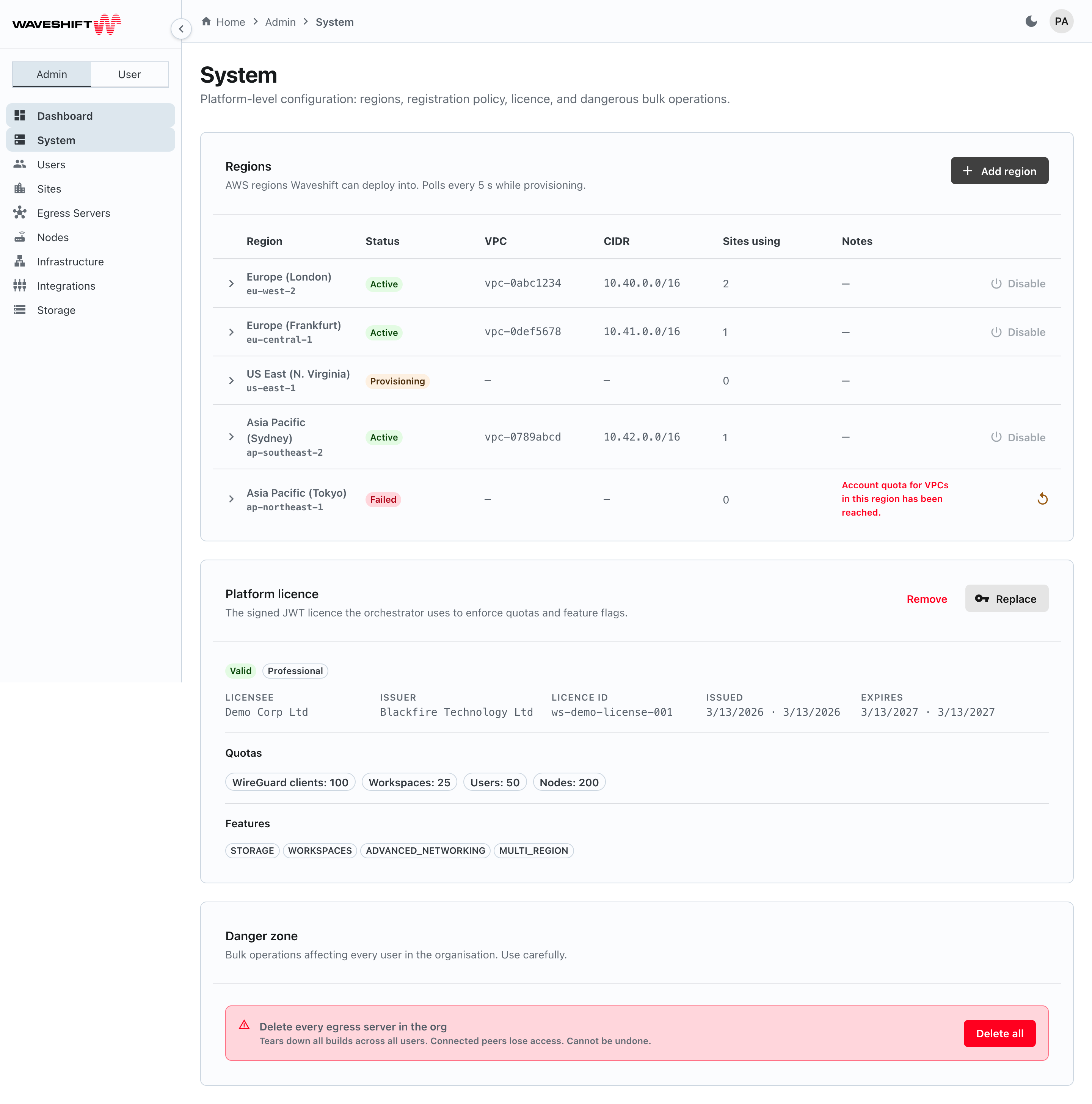
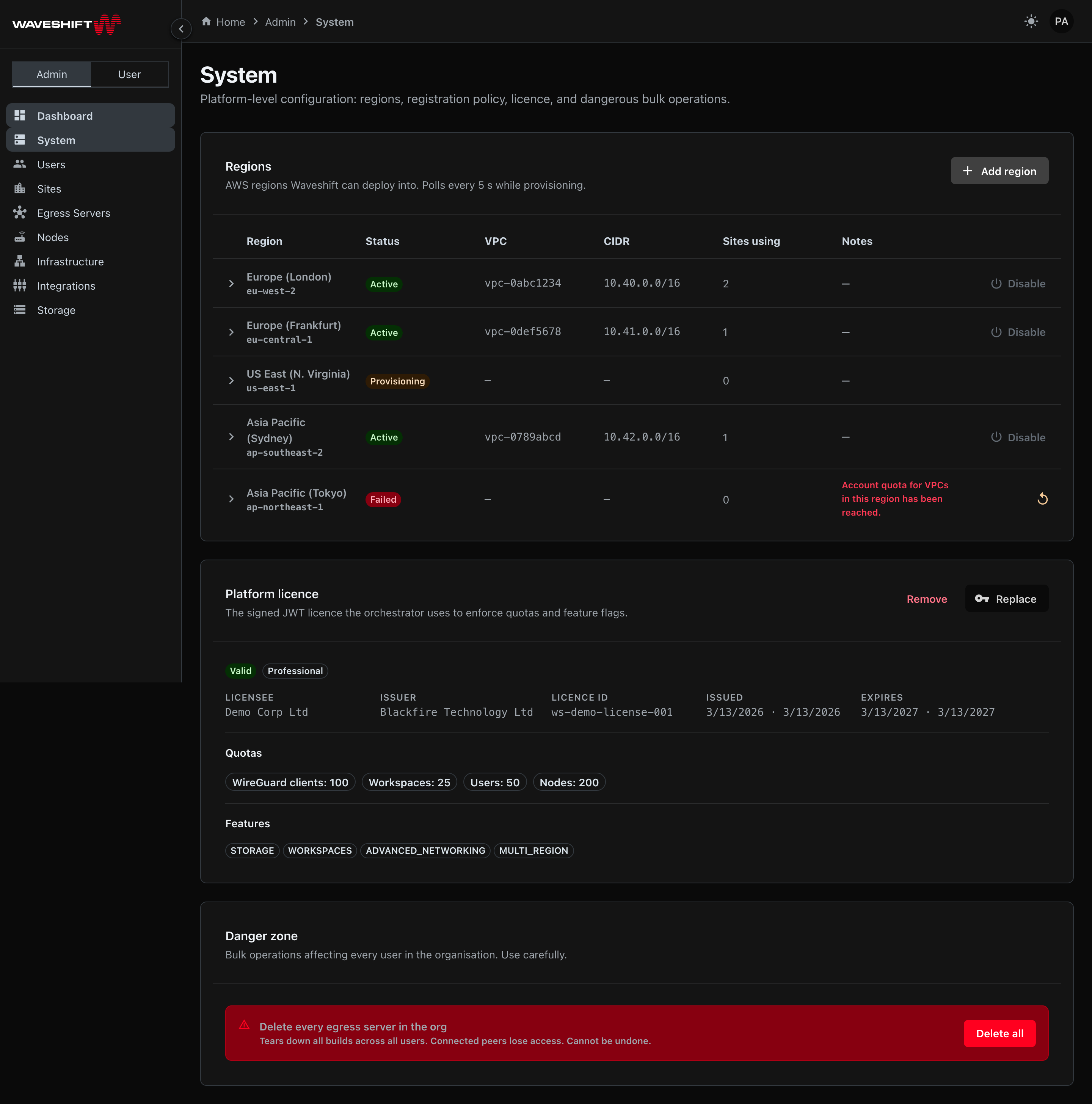
The System page (/admin/system) covers the two pieces of
platform-level configuration that aren't tied to a single user or
site: the platform licence and the org-wide bulk-destructive
operation. The AWS regions Waveshift can deploy into are managed
on the Infrastructure page.
Regions
AWS regions are no longer managed on this page: the Regions table, Add region, Retry and Disable now live on Infrastructure administration → Regions.
Platform licence
The Platform Licence card shows the decoded LicenseInfo for the
currently applied JWT licence:
- Validity chip —
Valid/Invalid, plus anExpires soonwarning chip if a valid licence expires within 30 days. An invalid licence also shows its validation error in a red banner. - Type chip —
Trial,Standard,Professional, orEnterprise. - Licensee — the organisation the licence was issued to.
- Issuer — usually Blackfire Technology.
- Licence ID, Issued, Expires — with a relative-time hint next to each absolute date.
- Quotas — chips showing the per-org caps the licence
enforces: WireGuard clients, Workspaces, Users, Nodes. A
0value renders asUnlimited. - Features — outlined chips for every feature flag the licence
carries (
kasm,storage,cloudflare,sso, …).
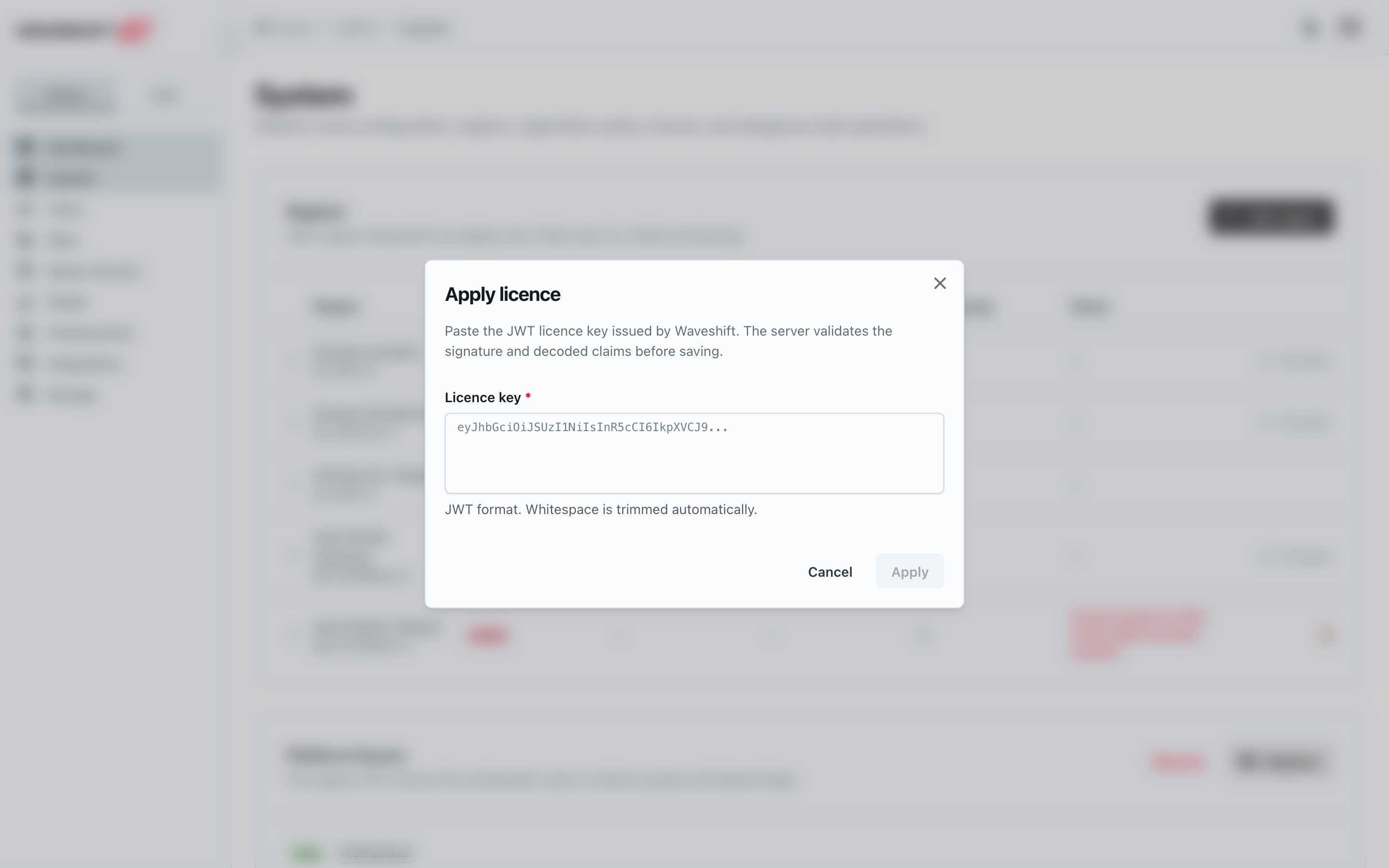
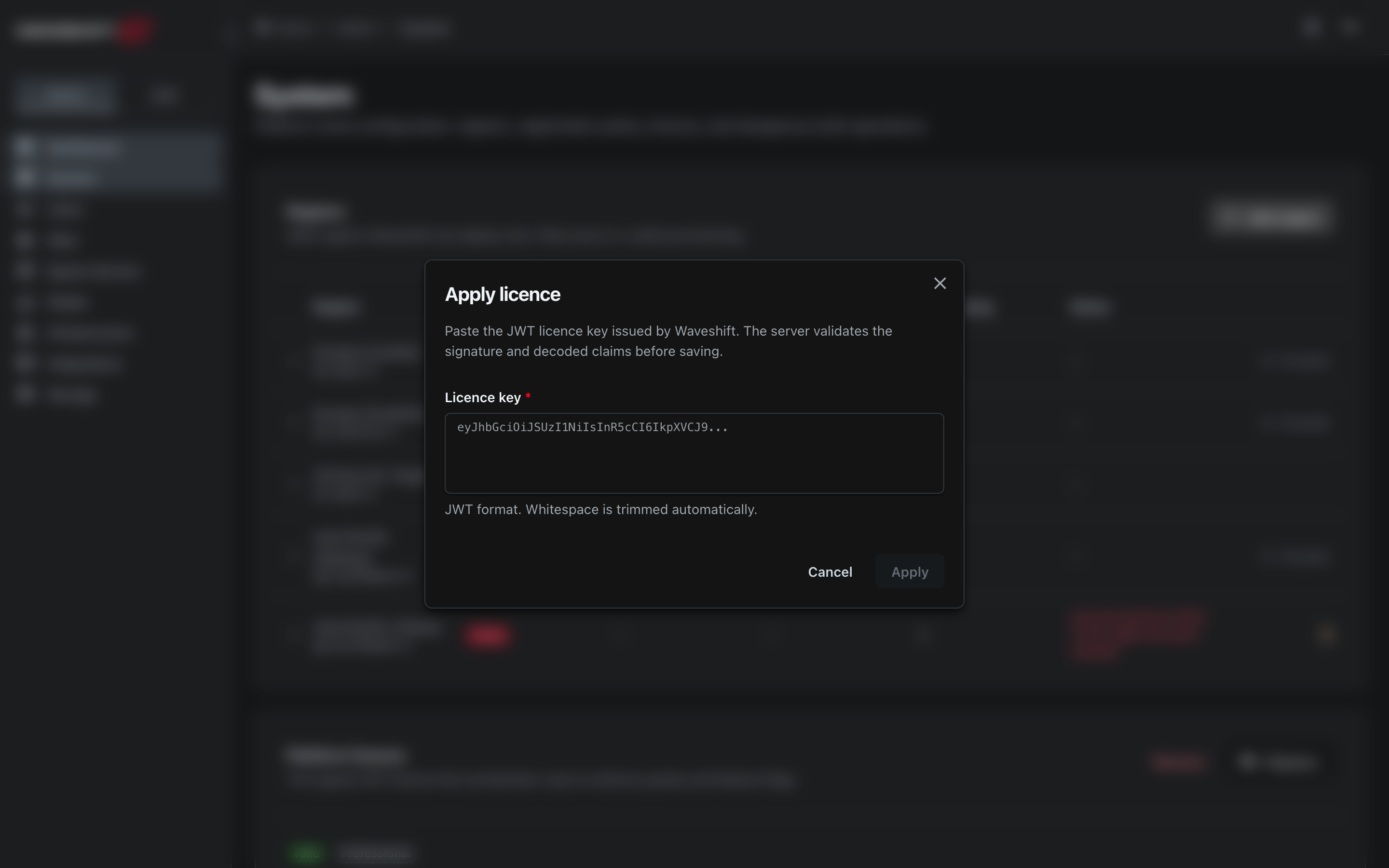
When no licence is configured, you instead see a warning banner ("No licence configured. Some features may be disabled until one is applied.") and the Apply licence button.
When a licence is present, the header carries two buttons: Replace (key icon) opens the same paste-the-JWT dialog (Licence key) as Apply licence, and Remove (danger) goes through a confirm dialog before tearing the licence down.
Removing the licence does not delete any data — but the orchestrator falls back to its no-licence behaviour, so features and quotas that depend on it may stop working until a replacement is applied.
Danger zone
A single dangerous bulk action sits inside a danger-styled container at the bottom of the page:
- Delete every egress server in the org — intended to tear down every WireGuard egress server across every user, in every region. Peers immediately lose access until new servers are provisioned. There is no undo and no per-user opt-out.
The Delete all button opens a
type-to-confirm dialog requiring the
literal phrase DELETE ALL before the Delete all egress servers
button enables.
Current behaviour
In this release the orchestrator scopes this operation to the first Site the signed-in admin belongs to: it deletes the egress servers recorded against that Site, not necessarily every server in the org. If your admin account has no Sites, the request fails with "user has no sites assigned". Check the Egress Servers administration page afterwards and delete any remaining servers individually. Use this only when you genuinely
need to reset the deployment — for example, before tearing the orchestrator itself down or before rotating to a new AWS account.