Dashboard
The dashboard (/admin) is the page administrators land on after
signing in. It is an org-wide overview and is only available to
admins.
Regular users don't have a dashboard — they land on the Egress Servers page instead. Admins reach that same page (and the rest of the user-facing pages) via the Admin / User toggle at the top of the sidebar.
Admin dashboard
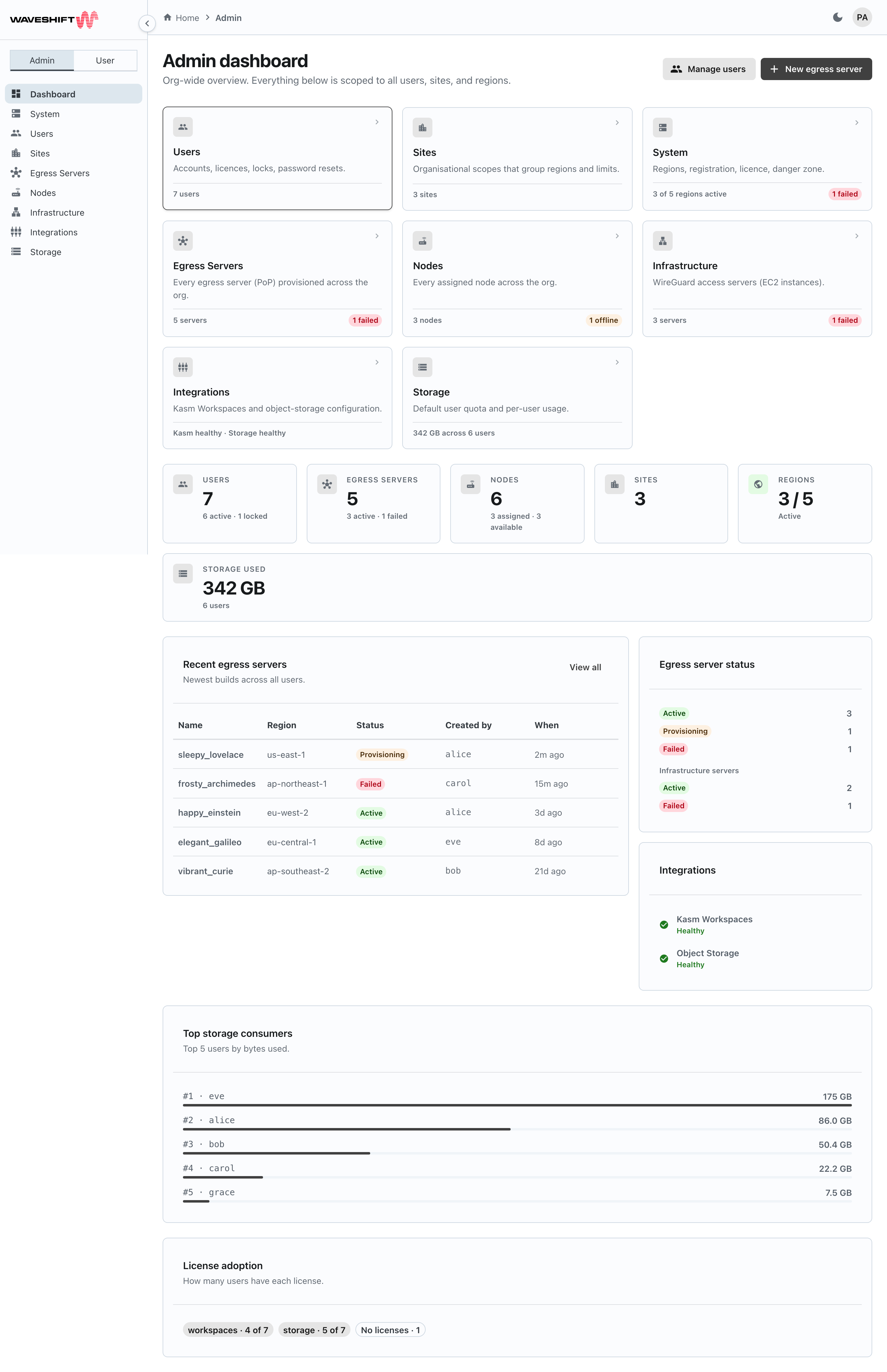
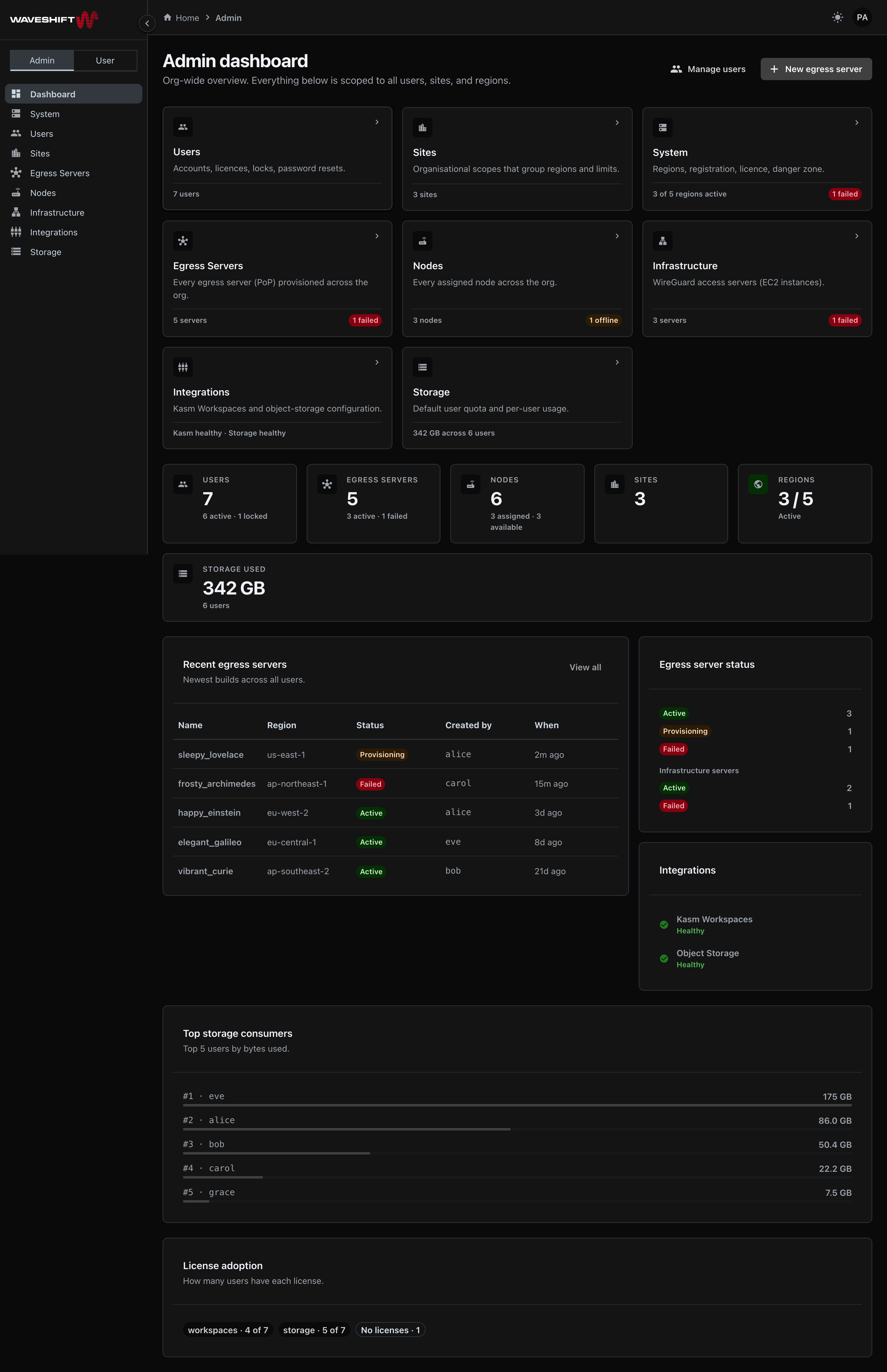
The admin dashboard answers "what's the state of the whole org?".
Quick navigation tiles
Along the top, eight clickable tiles link to each administration section, with a snapshot of the relevant metric:
- Users — total user count
- Sites — site count
- System — active regions / total, plus a "failed" badge if any
- Egress Servers — org-wide server count, plus a "failed" badge if any
- Nodes — assigned node count, plus an "offline" badge if any
- Infrastructure — server count, plus a "failed" badge if any
- Integrations — Kasm and Storage health one-liner
- Storage — total bytes used across all users
The tiles are themselves links — click anywhere on a card to navigate to that section. See Administration.
Org-wide stat cards
Below the navigation tiles, six stat cards summarise the whole deployment:
- Users (active vs locked)
- Egress Servers (active vs failed)
- Nodes (assigned vs available)
- Sites
- Regions (active / total)
- Storage Used (bytes + user count contributing)
Recent egress servers
The eight newest egress servers across the entire organisation, including who created each one (the username, truncated to eight characters). Useful for spotting a sudden burst of activity or finding a build a colleague just provisioned. The card's View all link goes to your own Egress Servers page; the org-wide list is the Egress Servers administration page.
Egress server status breakdown
A side panel showing the count of egress servers per status
(Complete, In progress, Failed, etc.) plus a parallel
breakdown for infrastructure servers if any exist.
Top storage consumers
The five users with the most storage allocated, with a relative bar showing each one's share of the largest. Click through to the Storage administration page for the full list and the default-quota controls.
License adoption
A row of chips showing how many users hold each licence (e.g. "workspaces · 12 of 23", "storage · 9 of 23") plus a "No licenses" chip for users with none assigned.
Integrations
Two health rows — Kasm Workspaces and Object Storage — show whether each integration is enabled and healthy, so admins don't have to drill into the integration settings just to spot a problem:
- Green check — enabled and healthy
- Red cross — enabled but unhealthy (the error from the orchestrator is shown in place of the status label)
- Grey question mark — disabled or not configured
Quick actions
The page header carries a Manage users button — a direct link to the Users administration page. To create an egress server, use New egress server on the Egress Servers page.