Files
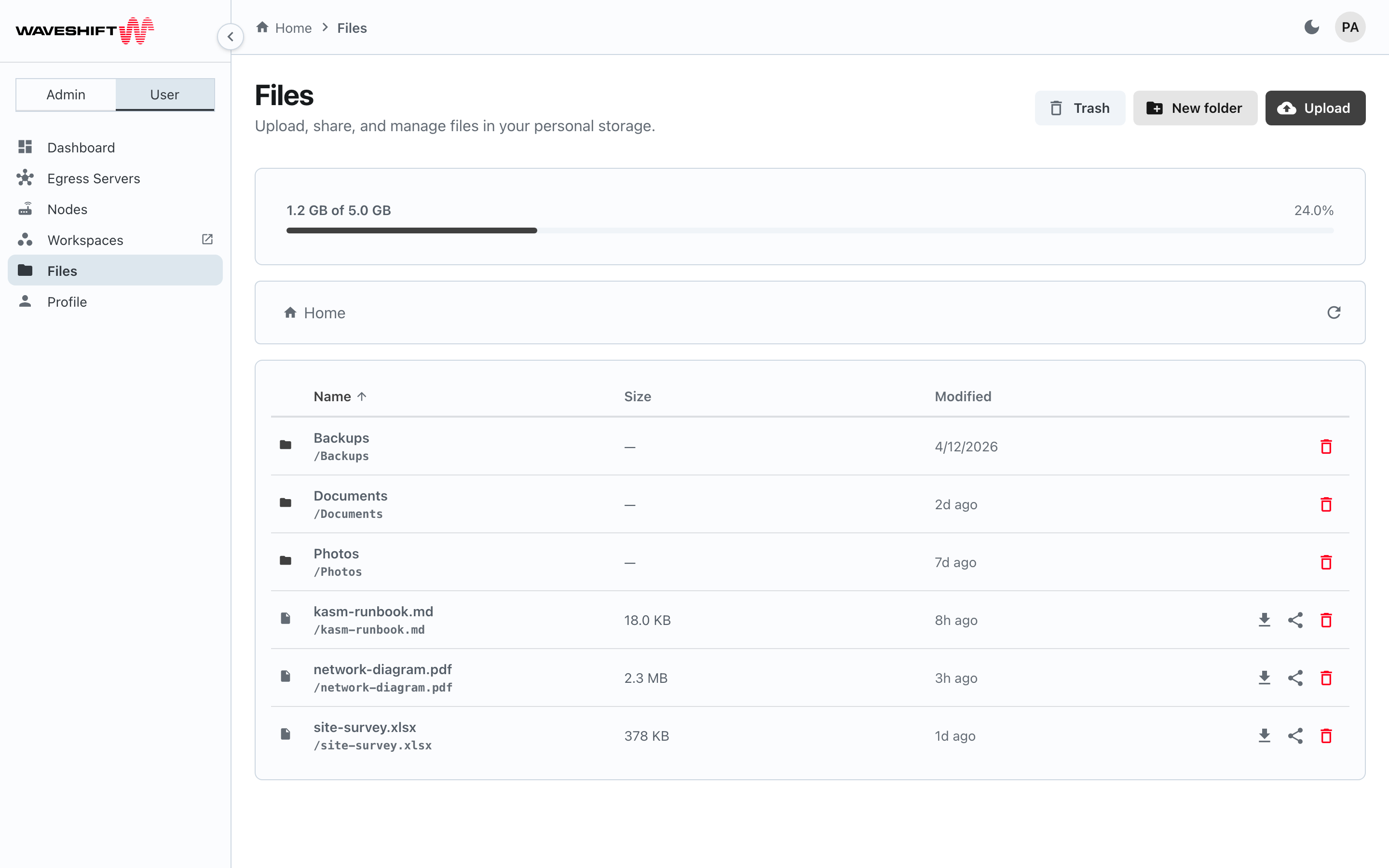
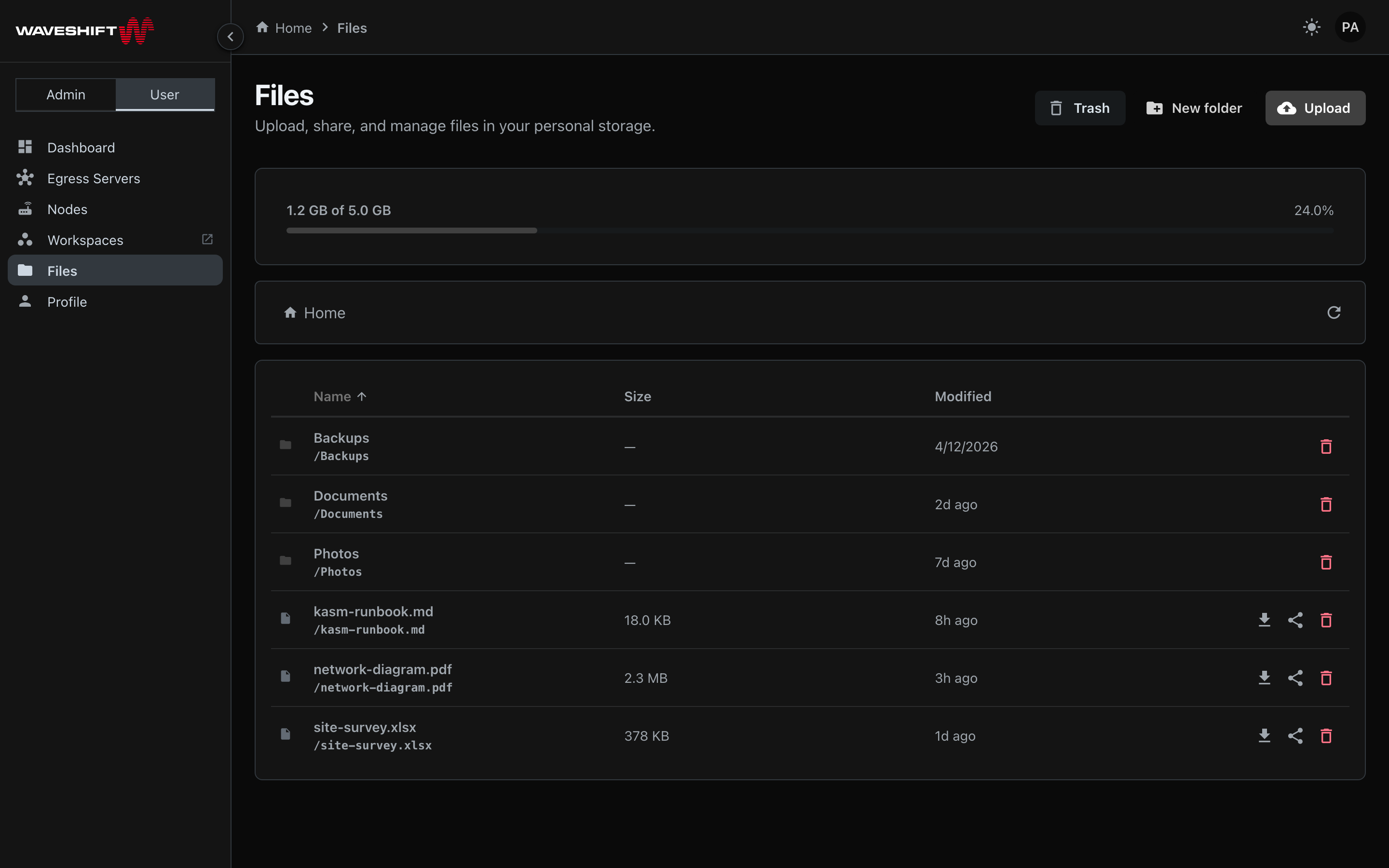
The Files page (/files) is your personal cloud storage browser.
It's only visible if your account has the storage licence — the
nav entry will be missing otherwise. See your administrator if you
need it enabled.
What you see
- A breadcrumb along the top showing your current path. Click any segment to jump back up the tree; click Home to return to the root.
- A storage meter showing how much of your quota you've used. The bar escalates colour as you approach the limit.
- A toolbar with three actions: Trash, New folder, Upload.
- A table of folders and files in the current path.
The table sorts folders first, then files within each group sorted by the column you've selected (Name, Size, or Modified). Pagination kicks in at 50 entries per page.
Uploading
Three ways:
- Click Upload — opens a file picker; supports multi-select.
- Drag files onto the page — anywhere on the main content works; a dashed border lights up to confirm.
- Drag a folder onto the page — supported in Chrome, Edge, Safari, and modern Firefox. The folder structure is preserved; any subfolders are created automatically before their files upload.
A sticky Uploads card appears at the bottom-right while uploads are in flight. Each row shows the file name, bytes uploaded, total, and a progress bar. Successful uploads show a green check; failed ones show a red error icon with the message. Click the × to dismiss a row once it's done.
Files larger than 5 MB automatically use multipart upload — chunks are uploaded in sequence and assembled server-side. You don't need to do anything different; the UI handles it.
Downloading
Click the download icon on a file row. The orchestrator generates a short-lived presigned URL and the browser starts the download immediately.
Sharing
Click the share icon on a file row to open the share dialog:
- Pick an expiry — 1 hour, 6 hours, 1 day, 3 days, or 7 days (the maximum).
- Click Generate link.
- The dialog shows the URL in a copyable field plus a 180 × 180 QR code for handing the link off via phone.
- Copy copies the URL to the clipboard. Generate another resets the dialog without closing it; Done closes it.
Anyone with the link can download the file until it expires — treat the link as the file. There's no per-recipient access control beyond expiry.
Folders and items in the trash can't be shared.
Trash
Deleted files don't disappear straight away — they move to the Trash view. Click the Trash button in the toolbar to switch to it. The Trash view hides the storage meter and breadcrumb, adds an Empty trash button above the list, and shows each item with two row actions:
- Restore — moves the item back to its original location
- Delete forever — permanently removes it (asks to confirm)
Empty trash clears every item in trash, also behind a confirm.
Click Exit trash to return to the regular file browser.
Creating folders
Click New folder in the toolbar; type a name; press Enter or click Create. Names are subject to the same character constraints as the underlying object store. Folders nest arbitrarily.
Sorting and pagination
- Column headers (Name, Size, Modified) are clickable. The active column shows an arrow indicating direction; clicking again reverses it. Folders always sort ahead of files regardless of direction.
- Below the table, a paginator appears once you exceed 50 entries. Page size is fixed at 50 per page.
What you can't do here
- Move or rename files in-place — there's no UI for this in v0.5; the underlying RPC exists but isn't surfaced. Workaround: download, re-upload to the new location, delete the original.
- See other users' files — Files is per-user storage, scoped to your account. The administrator's Storage page shows aggregate usage across all users but never the file contents.